Every way to create an assignment
The quickest ways to set a student's New Lesson, revision, reading or Qaidah work in QuranPortal, and which one to use when.
For teachers, school admins, and parents Updated
On this page
An assignment is the work you give a student: a type (such as New Lesson or Old Review), a range (such as Mulk 1-10 or Qaidah page 5) and a day. There are several ways to start one, but they all open the same short form. Once you know the form, you can use it anywhere.
Prefer to watch? This 4-minute demo shows most of the ways below. Pick a moment to jump straight to it.
How to Use QuranPortal as a Teacher (4-Minute Demo) 4 min 43 s Watch on YouTube
In this video
- 0:00 The Teacher Dashboard and its classes
- 0:21 Delete an example assignment
- 0:28 Click a suggestion
- 0:46 Type a range, then choose the type
- 0:57 Save and add another
- 1:05 Use as starting point, then pick half a page on the mushaf
- 1:49 Delete work you don’t need
- 2:01 Grade with Pass or Fail
- 2:06 Mark mistakes
- 2:50 Give homework for another day
- 3:05 The student’s assignment list and progress
- 3:30 How long since each revision
- 3:42 Calendar and comments
- 4:03 Private notes
- 4:24 Collected mistakes
Read the video transcript
0:00 So, I wanted to do a quick demo of how to use QuranPortal as a teacher. I'm going to just go in and log in as a teacher in QuranPortal. This is our class view right here. You can see there are different classes right here. So, I'll go ahead and go with this student. I'll just delete this example. And so, I come in here and let's say I want to go ahead and also assign Juz 22. This is what they completed yesterday and the day before, and I've already given them Juz 21 and they're already past that. But let's say they needed to do Juz 22. Actually, there's already a suggestion that I can just click, or I can type it out myself.
0:46 Juz 22 will say "Choose type". So, Old Review is one type, and we're going to keep going. So, that's the first way. Another way is, like I said, I could just click it and then I can Save and add another. Save and add another just goes to the next one. And let's say I wanted to do New Lesson, and that's from 179 to 186. Now, that's a page and a half, but let's say the next day, for New Lesson, they're only going to do half a page. So, you can use that as a starting point and click the mushaf icon.
1:24 So, they started yesterday, they did … all the way to … So, for today maybe we get them to half a page. Let's say that stops at … And then that could be their new lesson. And then you can see they have the different assignments due. You can just delete some of them. You're like, "Okay, I don't need that one." So, they already did 21, let's say, and then they want to do 22.
1:59 So, how do you grade them? You can just do a simple Pass or Fail. You can add mistakes like that. But one of the cool things we can do in QuranPortal is you can go and choose Mark Mistakes. And there I can click specific mistakes. We get all the different Tajweed mistakes. The frequent ones are basically the mistakes this particular student makes more often than others.
2:27 So, in … maybe they said it wrong; you can just mark that as a mistake. So, that's kind of it. And then I come back and I'll see one mistake here. It'll also show the word, and then I can go ahead and mark that as Pass or Fail, depending. And also, because this is a spreadsheet, I can choose a day and give homework. Let's say homework for this one will be Old Review Juz 23, because we already have 21 and 22. And so, that will be homework for the student. And then on the student view, the student will see their assignment list, and you can go back and see the different assignments they have. If you need to, you can filter it by type. You can also see the progress. So, like, what did they do: Juz 20, 20 pages.
3:20 And then you can go back to see what they did week by week and month by month. Also, what's interesting is you can look at the frequency. So, for example, you can tell, "Oh, look, the last time they did Juz 15 Old Review was almost 47 days ago." So, that could be useful for you. And finally, there's a calendar view. Even with assignments, you can add comments.
3:50 "Needs to focus on … Tajweed," let's say. And then the student, if they're logged in, will be able to see that. But also, you can add student notes, add a note yourself. Let's say you want to say "absent". These are private notes, just for the teacher; the students will not see these. Whereas comments are something the students will be able to see.
4:22 And finally, the last thing I wanted to show you is mistakes. You can see right here the mistakes get collected as well. And this is a view that students can see as well as teachers.
Lightly edited from YouTube’s automatic captions. Arabic the captions could not make out is shown as “…”.
Which way should I use?
- You are teaching a class. Use the Teacher Dashboard. It is the fastest way to set work for one student after another.
- Several students need the same work. Create it once, then copy it to the others.
- You are already looking at one student. Use + Assignment on the student’s page.
- You are a parent. Use Assign on your Dashboard.
- You are setting homework. On the Teacher Dashboard, click + under the next lesson’s day.
- The student has already recited. Use any of the above, and press Pass or Fail instead of Save to record the grade at the same time.
The assignment form
Every way below opens this form. Fill it in from top to bottom.
-
Choose the assignment type
Tap New Lesson, New Revision, Old Review, Reading or Qaidah. You only see the types your school has turned on for that student.
-
Type the range
Type what the student should recite in the Range box, the way you would say it:
- Baqarah for a whole surah, or Baqarah 1-10 for some of its ayahs
- pg 5 for a page, or pg 5 H1 for its first half
- juz 30, juz 30 H1 or juz 30 Q1 for a juz, a half or a quarter
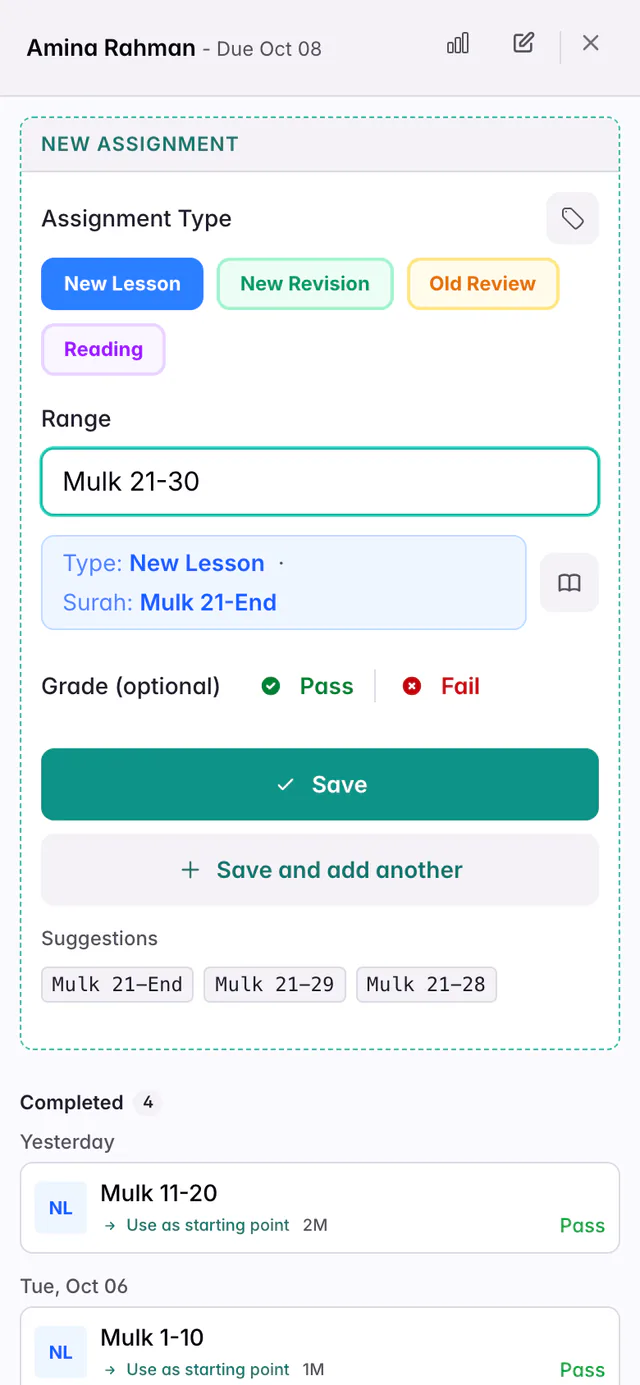
A line appears under the box showing exactly what QuranPortal understood, such as Type: New Lesson · Surah: Mulk 21-End. Check it before you save. If you see Did you mean?, tap the suggestion.
You can also type the range first, for example Juz 22. The line then shows + Choose type: tap the type you want in the row above. Pressing Choose type itself picks New Lesson.
-
Save, or grade straight away
Press Save to set the work. If the student has already recited it, press Pass or Fail instead. That saves the assignment and records the grade in one step.
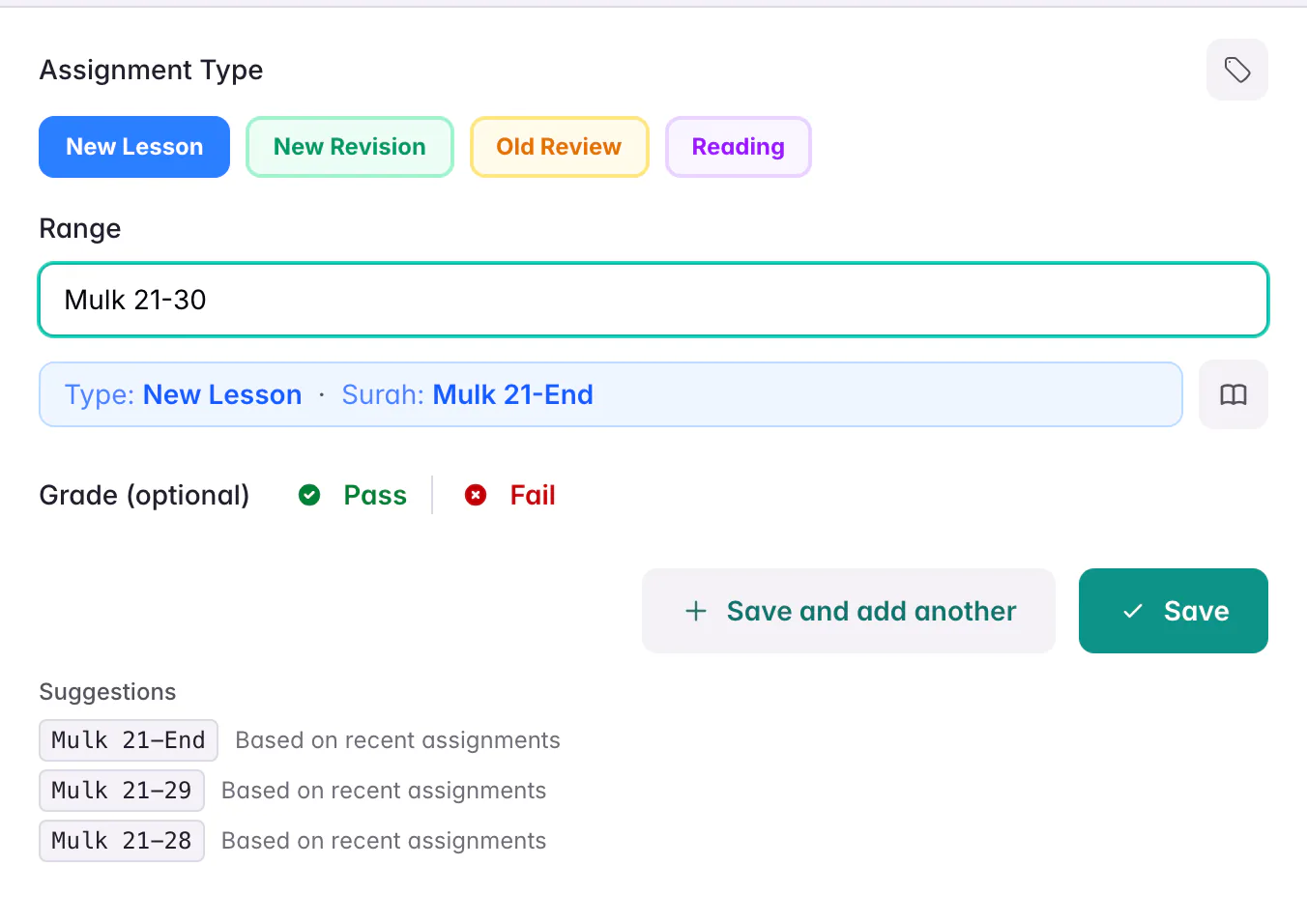
QuranPortal reads “Mulk 21-30” as Mulk 21 to the end, because Al-Mulk has 30 ayahs.
From the Teacher Dashboard
The Teacher Dashboard is your class sheet: one row for each student and one column for each day. Most teachers set work here during a lesson.
-
Open your class
Choose Dashboard in the menu, or the Class tab in the iPhone and Android app. Your class opens on today. If you teach more than one class, pick it from the tabs at the top.
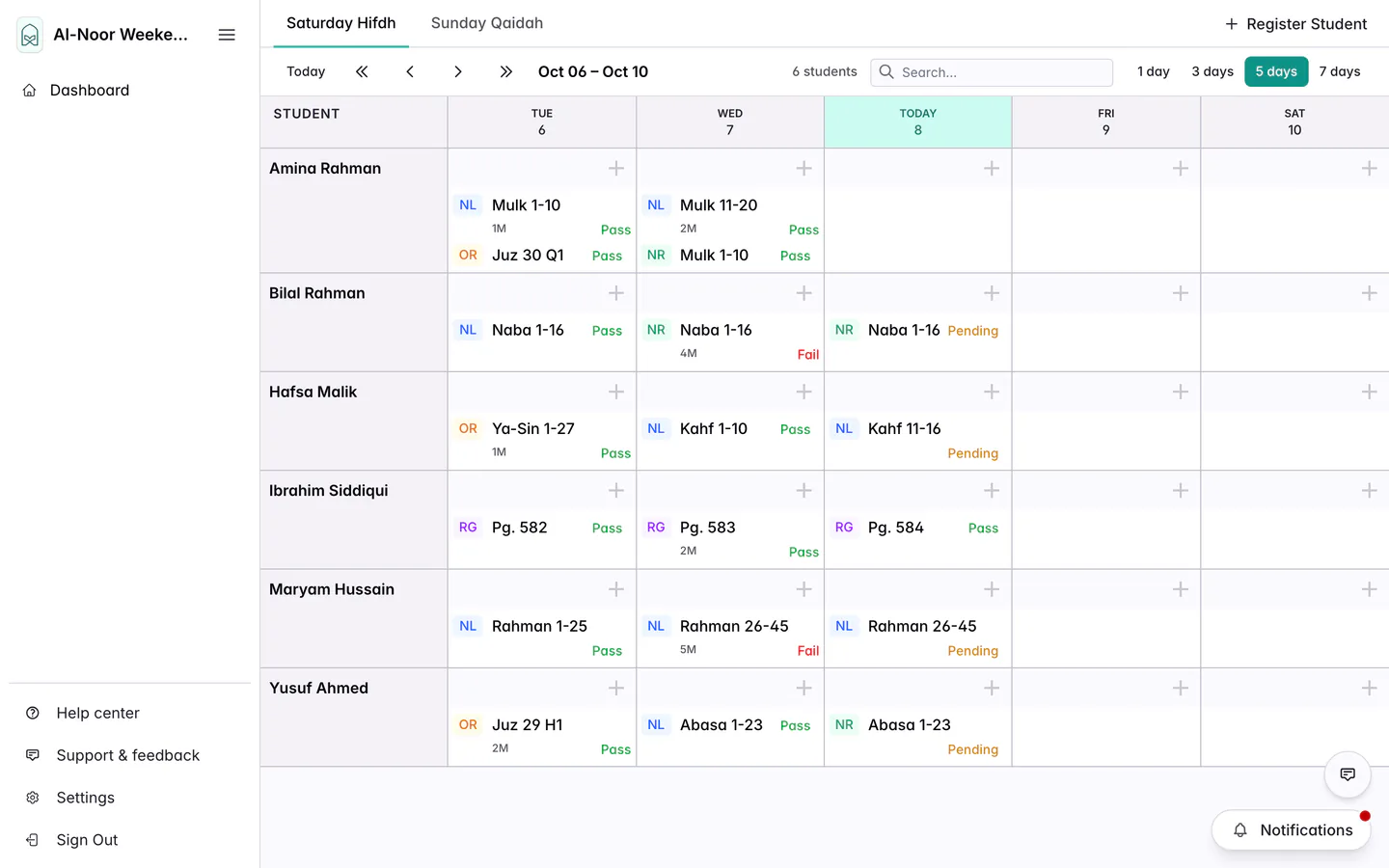
Each row is a student and each column is a day. Today is highlighted. -
Click the + under the day
In the student’s row, click the + under the day the work is for. The form opens for that student and day. Their recent work is on the left, and anything already set for that day is on the right.
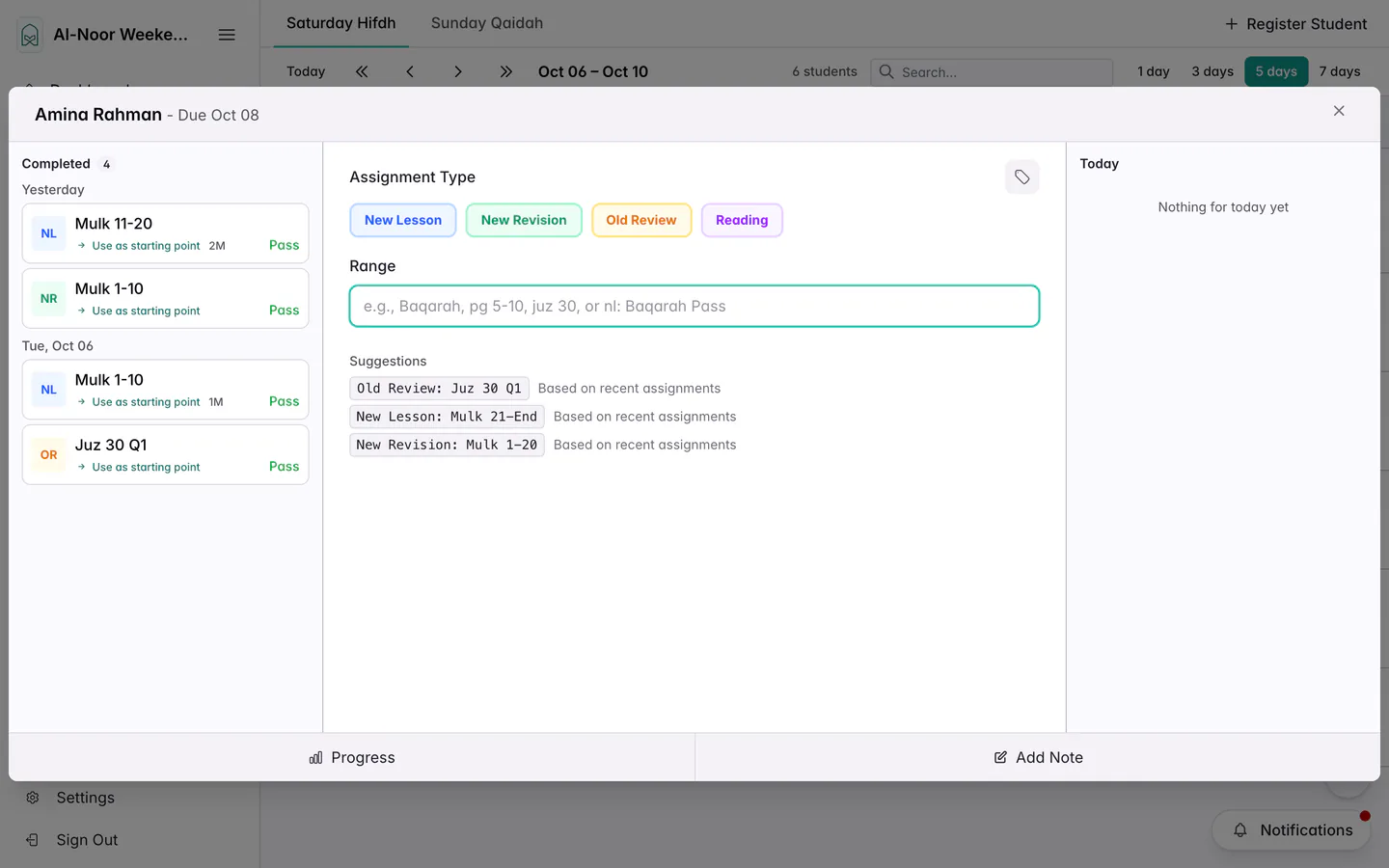
Suggestions come from the student’s recent work. Click one to fill in the form. -
Fill in the form and save
Choose a type, type the range and press Save. To set more work for the same student, press Save and add another. The form stays open for the same student and day.
On a phone
Phones show one day at a time. Use the arrows beside the date to change day, then tap the round + beside a student’s name. The form fills the screen.
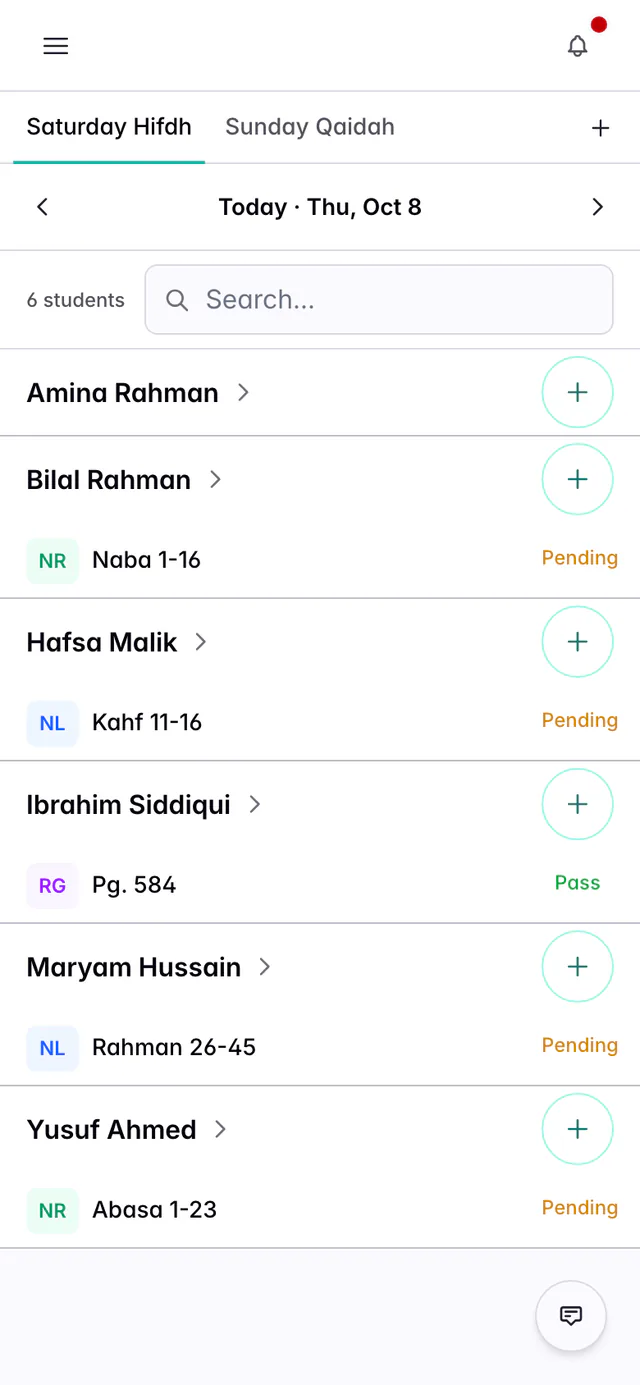
Set homework for another day
Because the Teacher Dashboard is laid out by day, homework is just work on a later day. Click the + under the day of the next lesson in the student’s row, and fill in the form as usual. To see more days, choose 3 days, 5 days or 7 days at the top, or move along with the arrows. On a phone, use the arrow beside the date to go to that day.
Give the same work to several students
There is no button that sets work for a whole class at once. Instead, create the assignment for one student, then copy it. Copy an assignment to other students covers every way to copy in more detail.
-
Open the assignment
On the Teacher Dashboard, click the assignment you want to copy.
-
Choose More, then Copy to…
The Copy assignment window opens with the same type and range.
-
Pick the day and the students
Set the Due date, tick each student (or Select all) and press Copy. Each student gets their own copy, and the original stays where it was.
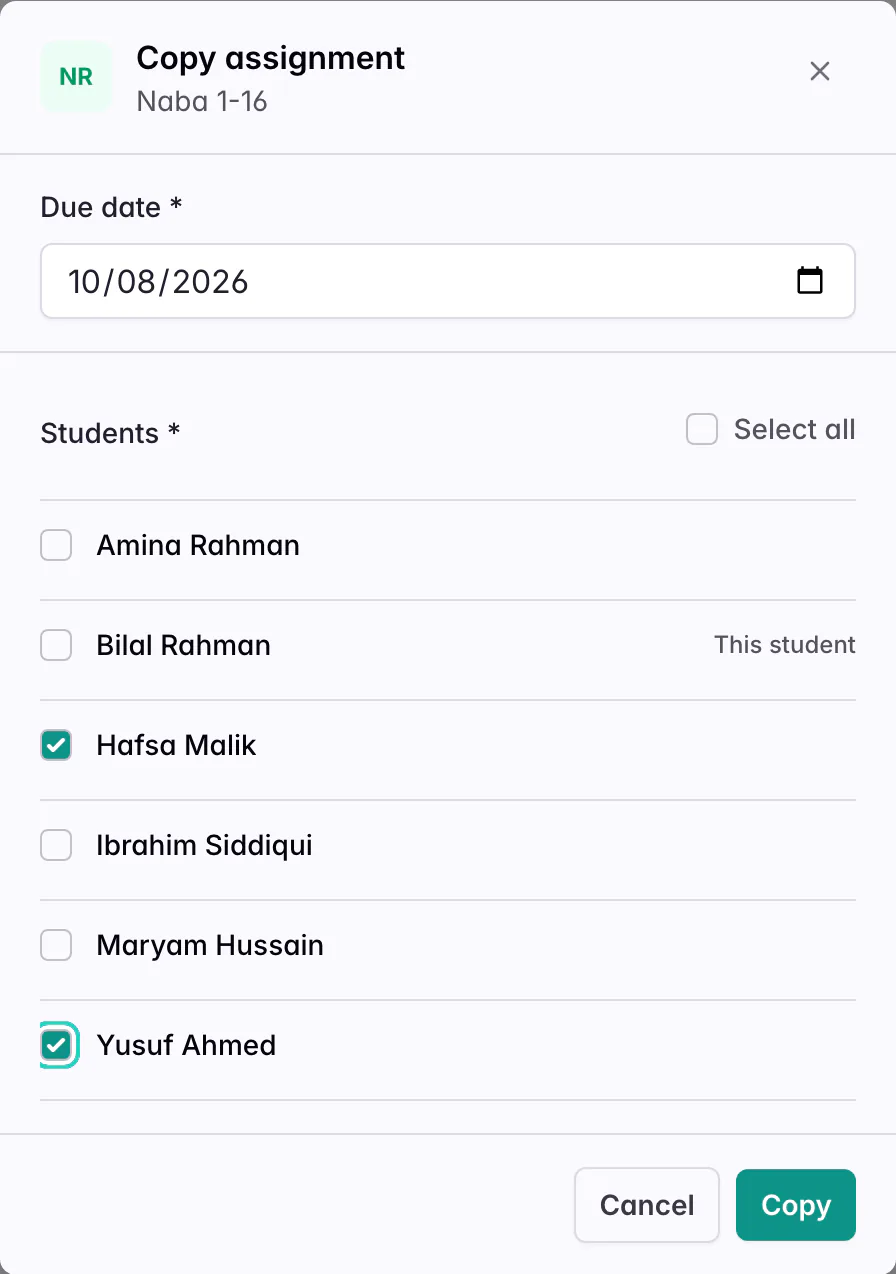
Only students you can set work for are listed.
On a computer or iPad you can also drag an assignment onto another student’s row to copy it to them. To copy it to another day for the same student, hold Option (Alt on Windows) while you drag. Dragging within a student’s row without Option moves the assignment instead.
Delete work you don’t need
If you set something by mistake, or the student has moved past it, delete it.
-
Open the assignment
On the Teacher Dashboard, click the assignment. You can also open it from the student’s assignment list.
-
Choose More, then Delete
QuranPortal asks you to confirm, because deleting also removes the assignment’s grade. Press Delete Assignment. Mistakes you marked stay in the student’s mistake history.
On a computer or iPad you can also drag an assignment to Drop here to delete at the bottom of the Teacher Dashboard, then confirm.
From a student’s page
When you are already looking at one student, for example their assignment list, progress or calendar, you can set work without going back to the class.
-
Press + Assignment
It is at the top of every student page. You can also choose New assignment under the student’s name in the menu.
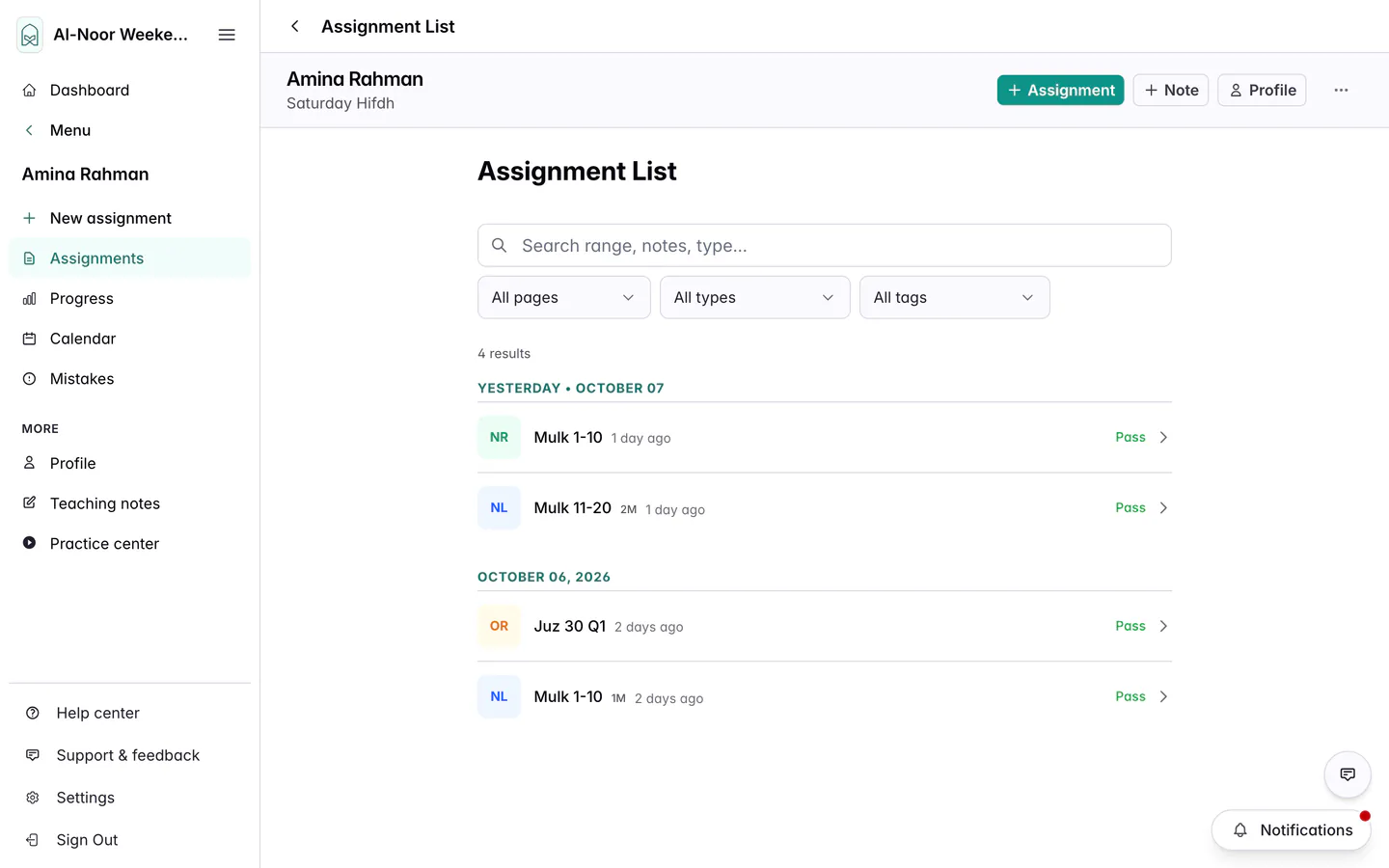
The + Assignment button and the New assignment menu item open the same page. -
Fill in the form
This is the same form, with a Due Date box so you can pick any day, and the student’s Recent Assignments beside it. Click a recent assignment to copy its range into the form.
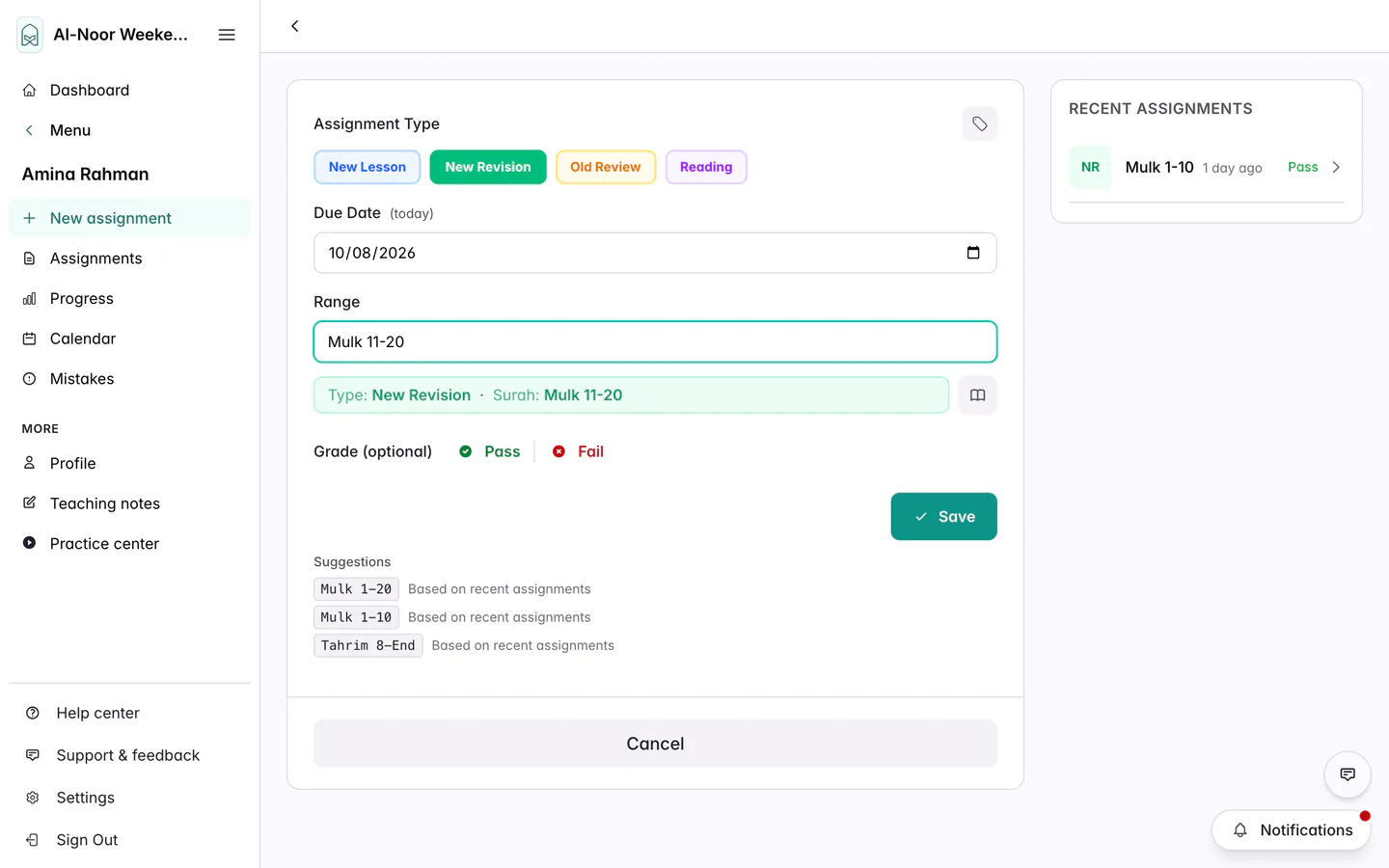
Choose a Due Date to set work for another day. -
Press Save
Teachers and admins are taken to the new assignment so they can check it. Parents go back to their child’s assignment list.
In the iPhone and Android app
On a student’s page, tap + in the top bar. The form opens as a sheet over the student’s page. Close it to go back.
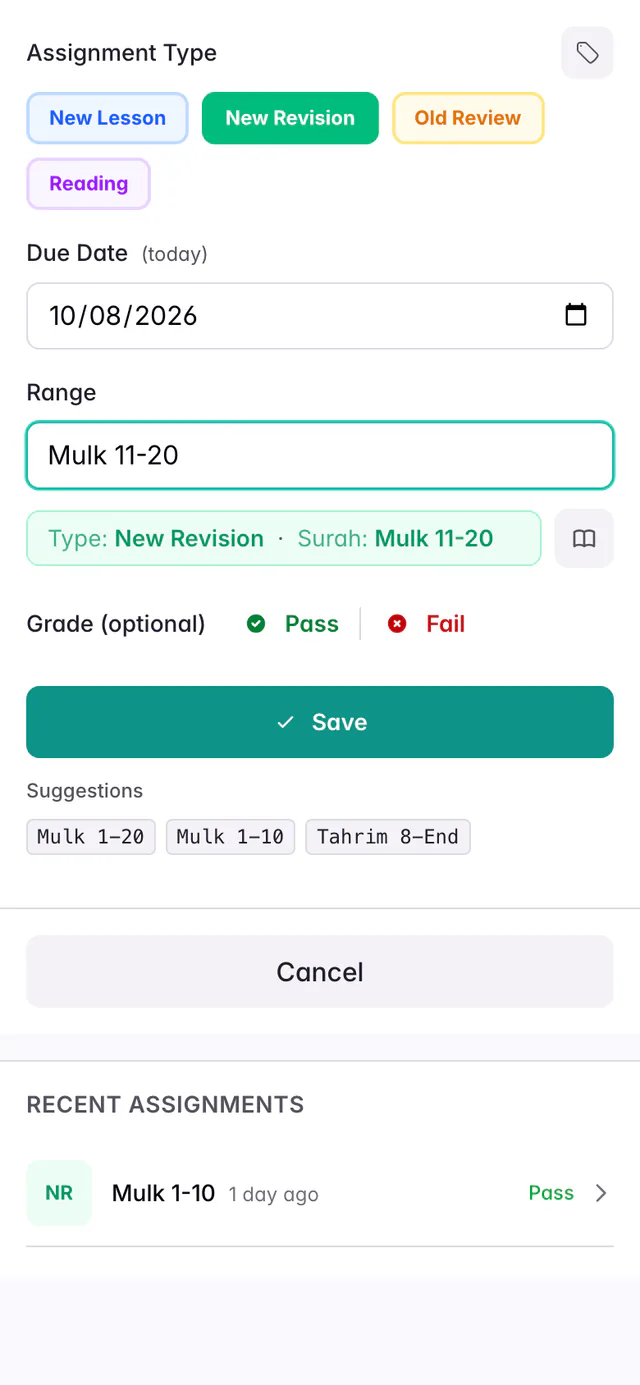
Teachers who like to see one student’s whole history can also open the ⋯ menu on a student’s page, choose Timeline, and press + Assignment there.
For parents: from your Dashboard
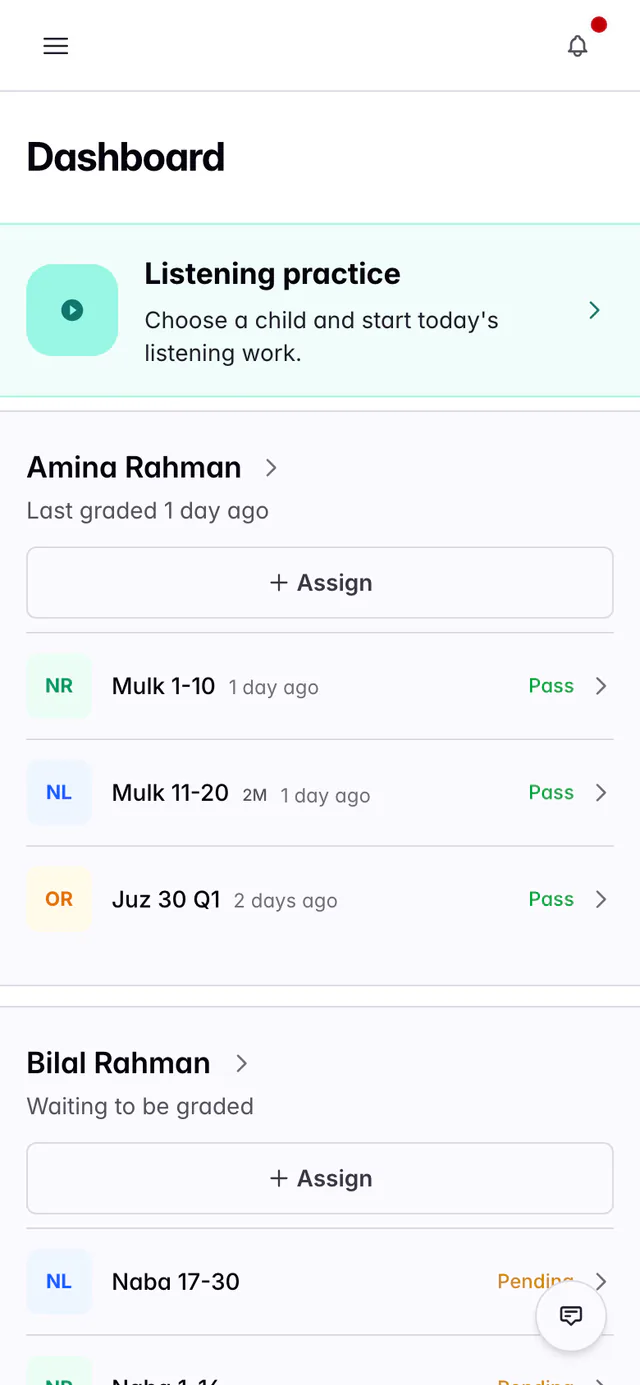
If your child’s school lets you set work at home, each child on your Dashboard has an Assign button. It opens the same form described above.
Qaidah assignments
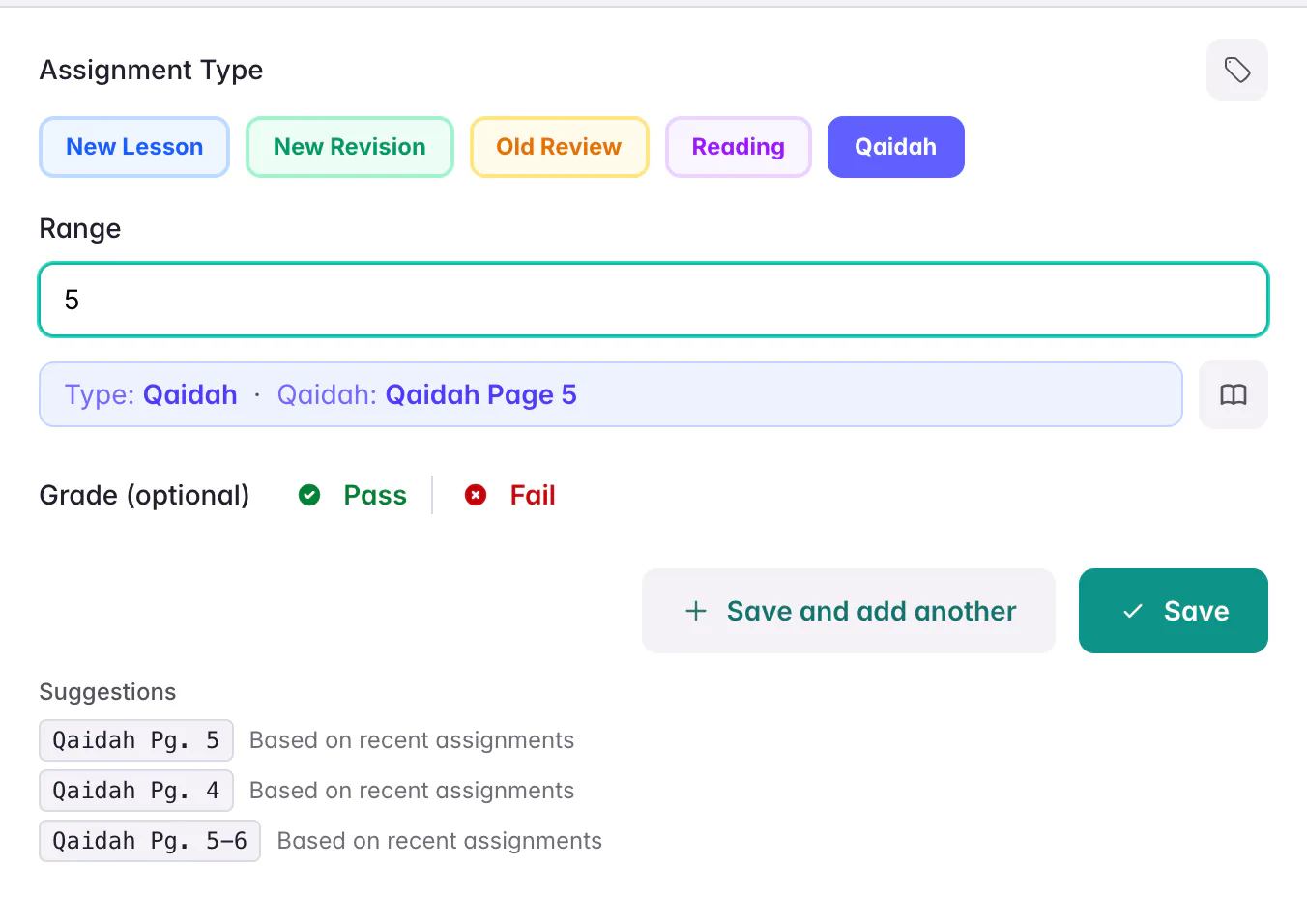
Choose Qaidah as the type, then type page numbers:
- 5 for page 5, or 5-10 for pages 5 to 10
- 5 lines 1-3 for some lines of a page
- 5 boxes 3-8 for some boxes on a page
Not sure what to type?
- Suggestions. Under the form, QuranPortal suggests the next piece of work, such as continuing the last lesson or the next Qaidah page. Click one to fill in the type and range.
- Use as starting point. In the Teacher Dashboard form, each piece of past work on the left has this link. It copies that work’s type and range into the form, and suggests what usually comes next, so you can adjust it.
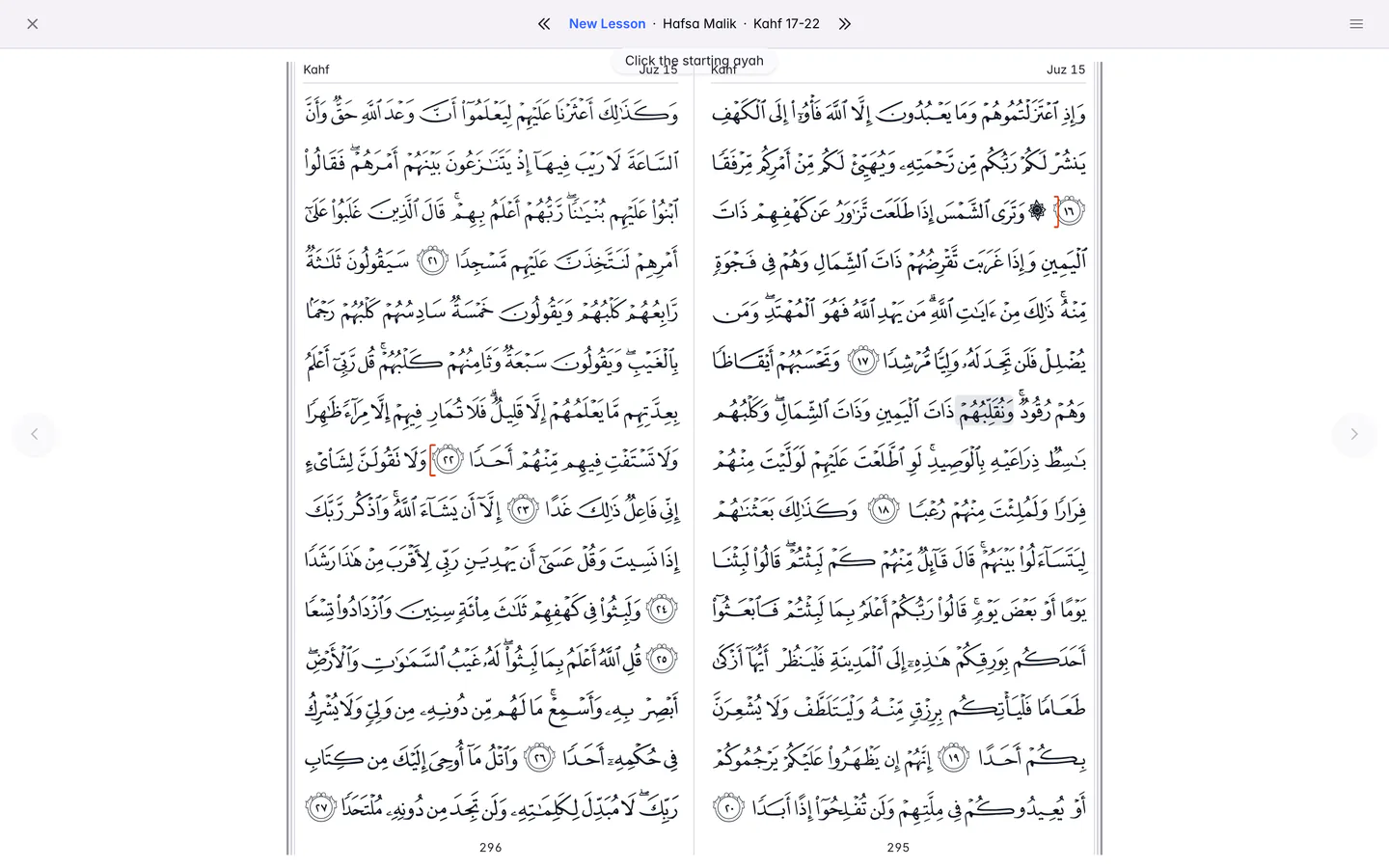
- Pick it on the page. Once a range is filled in, press the book button beside it. The mushaf (or the Qaidah) opens on that range. Click the starting ayah, then the ending ayah, and the range box updates. Then press Save as usual.
The two work well together. Say yesterday’s New Lesson was a page and a half, and today the student should only do half a page. Click Use as starting point on yesterday’s lesson, press the book button, then click the first and last ayah of today’s half page.
Questions and answers
Can I give the whole class the same assignment at once?
Not in one step. Create it for one student, then open it, choose More and Copy to…, press Select all and then Copy.
How do I record work a student has already recited?
Fill in the form as usual, then press Pass or Fail instead of Save. QuranPortal saves the assignment and the grade together.
Can I set work for a future day?
Yes. On the Teacher Dashboard, click the + under that day. On a student’s page, choose the day in the Due Date box.
How do I delete an assignment I set by mistake?
Open it, choose More and then Delete, and press Delete Assignment. Its grade is removed too; mistakes you marked stay in the student’s mistake history.
Why can’t I see the Teacher Dashboard?
It only shows classes you teach. Ask a school admin to add you to the class.
Why is an assignment type missing?
The form only shows the types turned on for that student. A school admin can change them in Settings, under Assignment types.
Can parents set assignments?
Yes, if the school gave them “Create and grade assignments” access or more when connecting them to their child. They use the Assign button on their Dashboard.
What do nl, nr, or, rg and qh mean?
They are short codes for New Lesson, New Revision, Old Review, Reading and Qaidah. Type one before or after the range, such as “nl: Mulk 1-10”, to choose the type without tapping a button.
Related guides
- Copy an assignment to other students Give several students, or brothers and sisters, the same work: copy an assignment with Copy to… or by dragging it on the Teacher Dashboard.
- Set up the Practice center for your students Turn on home practice, choose listening defaults, turn listening on for assignments, and sign a child's device in with a QR code or letter code.
- Let children practice at home Sign your child in on a phone or tablet with a link, a QR code or a four-letter code, with no email or password, so they can practice listening at home.
- Send a progress report to parents Send parents a progress report on a student's hifz: choose the period, write one comment, check the preview and email it. What parents get, and printing.
Still stuck?
Tell us what you were trying to do and we’ll help. Email support@quranportal.io. Need to chat with the team? Join our WhatsApp group.