Set up the Practice center for your students
Turn on home practice, choose listening defaults, turn listening on for assignments, and sign a child's device in with a QR code or letter code.
For teachers and school admins Updated
On this page
Each student has a Practice center where you set up listening practice at home: the reciter and repetitions, which assignments the child practices, and the child’s own sign-in on a phone or tablet. The child gets no email address and no password. A grown-up signs the device in once with a QR code, or the child types a short username and taps a four-letter letter code on a pad of Qaidah letters. The device then remembers them.
This guide is for teachers and school admins. For the family side, signing in at home and what the child sees, send parents Let children practice at home.
Open the Practice center
Open the student, then choose Practice center under their name in the menu, in the More section. In the iPhone and Android app it is in the same place in the Menu.
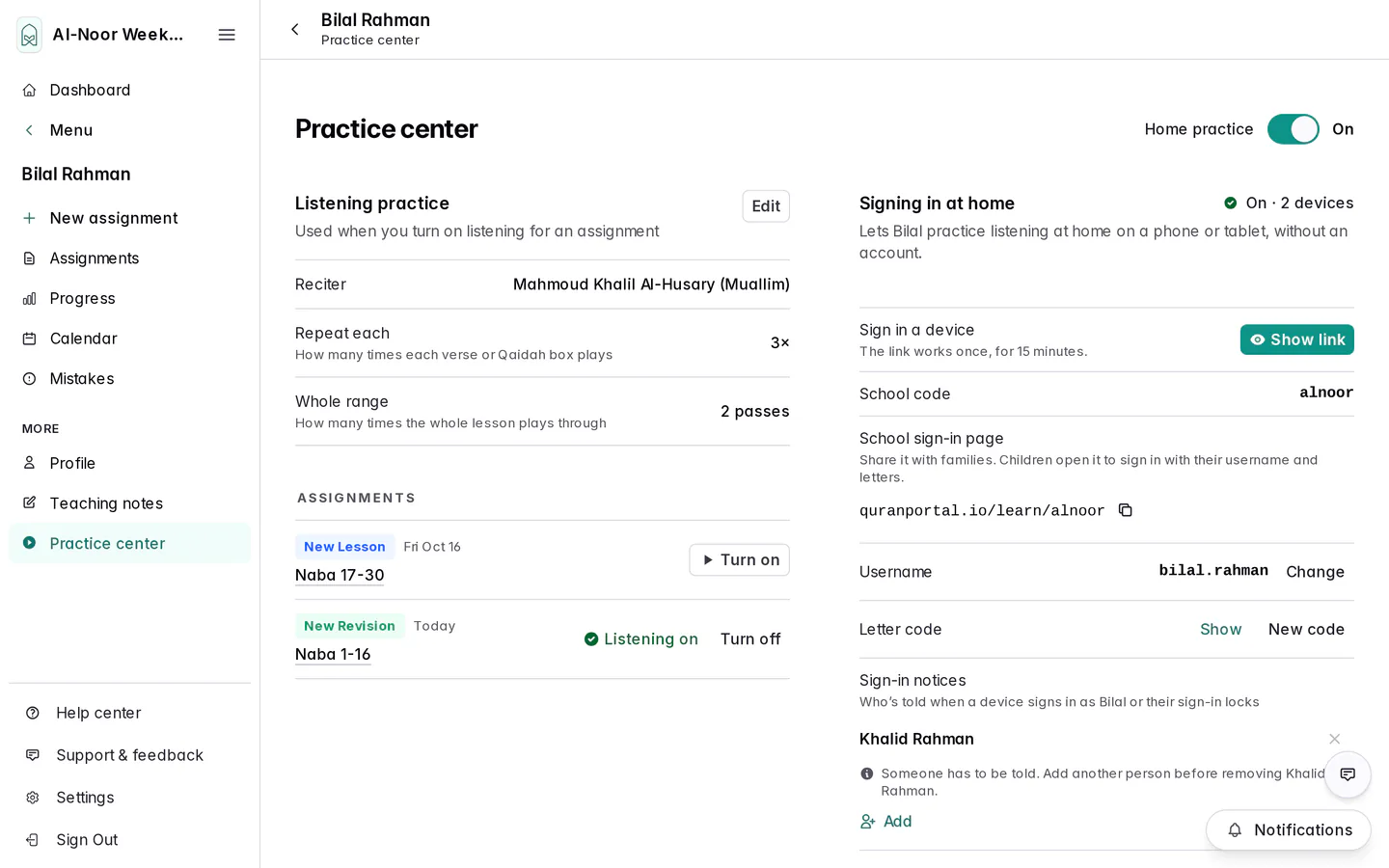
Two things need to be in place before a child can practice at home:
- Your school has home practice. It is switched on one school at a time by the QuranPortal team, and listening practice comes with it. If the student menu has no Practice center, contact us.
- Listening is turned on for some work. The child practices only assignments with listening on. See Listening practice.
Home practice and the child’s sign-in
The Home practice switch beside the title says whether the student practices at home at all. It is On for every student until someone turns it off. While it is on, assignments with listening on can be practiced by the child, by their parents in the listening player, and by a student with their own account.
A child without their own account also needs a sign-in for their phone or tablet. Under Signing in at home, press Turn on sign-in. QuranPortal makes the child a username and a letter code and shows Signing in at home is on. The status beside Signing in at home then reads On with the number of devices signed in.
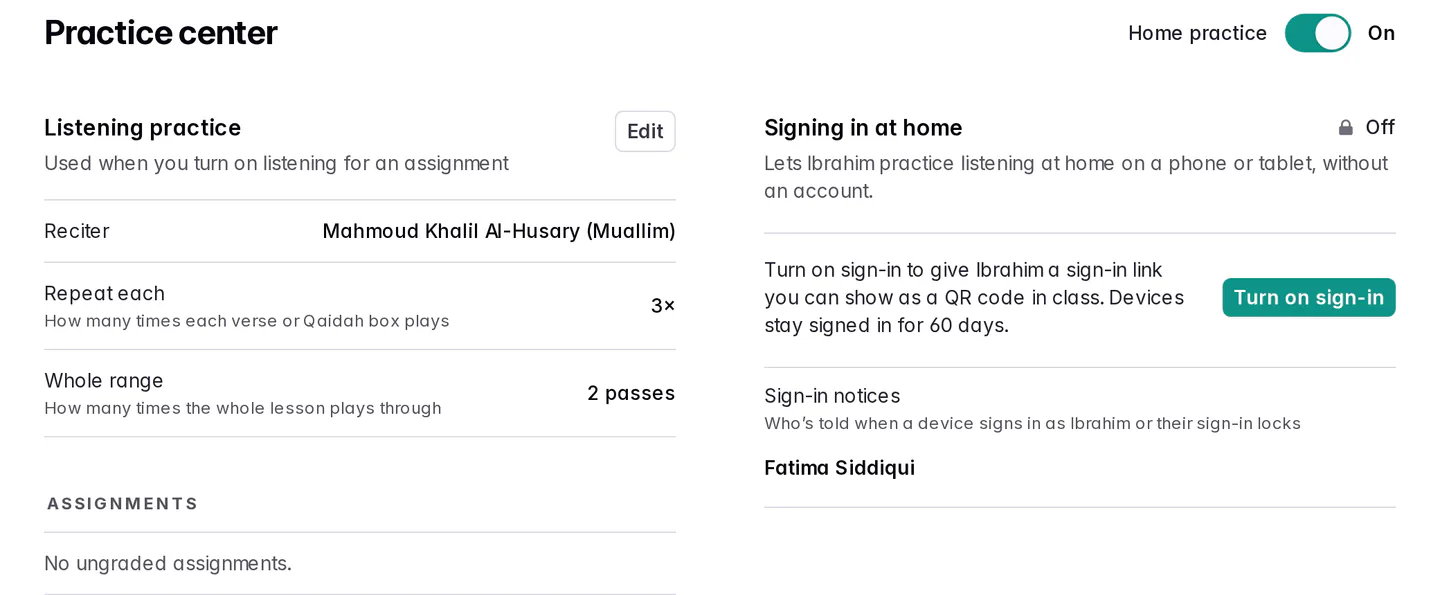
To stop home practice, press the switch and confirm with Turn off. Nobody can practice the student’s assignments until it is on again, every device signed in as the child is signed out and unused links stop working. On each assignment, the listening section shrinks to one line saying it is paused. The username, letter code and each assignment’s listening settings stay as they were, so turning it on again picks up where the student left off. A child’s devices just have to sign in again.
Who hears when a device signs in or sign-in locks
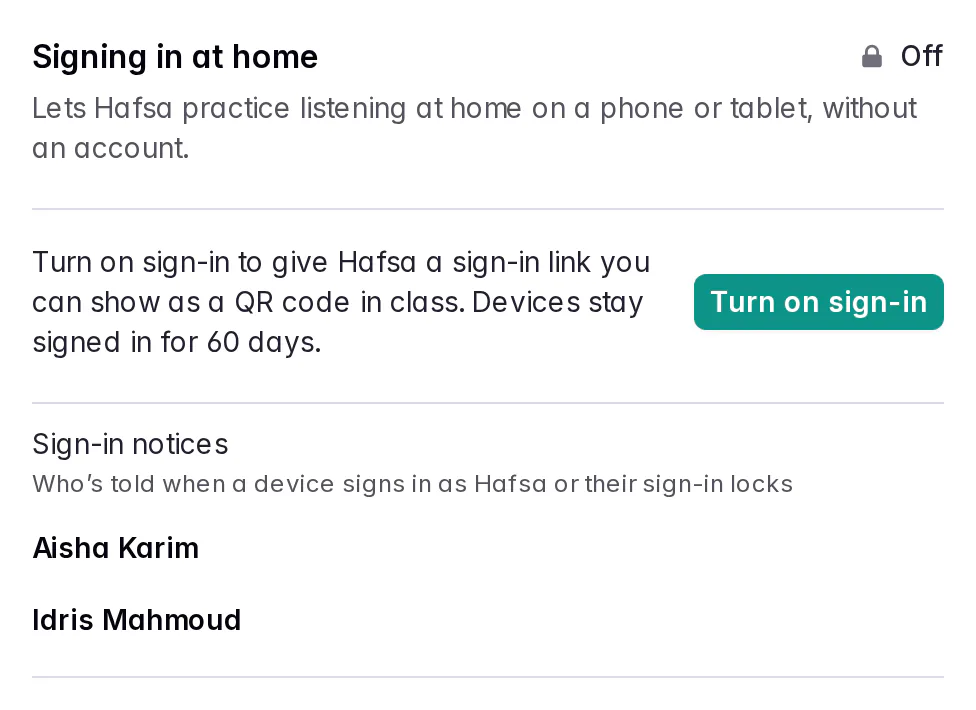
Each time a device signs in as the child, and when the child’s sign-in locks after too many wrong letter codes, the people under Sign-in notices in Signing in at home get a notification. Until someone changes the list, it is the child’s parents (mother, father or guardian), or the class teachers when no parent is connected, so a child with no parent can still have home practice.
Once home practice has been turned on, teachers of the class and school admins can change the list. Press Add to choose from the child’s parents, class teachers and school admins, or press × beside a name to remove them. Someone always has to be told, so the last person can’t be removed. A parent who connects later joins the list, and anyone who loses access to the child, such as a teacher who leaves the class, stops getting notices. Parents see the list but can’t change it.
Students with their own account
A student who signs in to QuranPortal with their own account doesn’t need a child sign-in, and the Practice center says, for example, Yusuf has their own QuranPortal account and signs in with it to practice. The Home practice switch still turns their practice on and off.
Listening practice
Listening practice plays the child’s assignment, repeating each part and then the whole range, and saves the child’s practice for you.
-
Check the defaults
Under Listening practice are the Reciter, how many times to Repeat each part and how many passes of the Whole range. They are used when you turn on listening for an assignment. To choose others, press Edit, change them and press Save defaults.
-
Turn listening on for assignments
The Assignments list shows the child’s ungraded work: everything overdue, however late, and the next two weeks’, newest first, up to 10. Press Turn on next to an assignment. The row then shows Listening on and a Turn off button. If the defaults weren’t saved yet, the first Turn on saves the ones shown. Press an assignment’s name to open it and change how it plays in its own listening section.
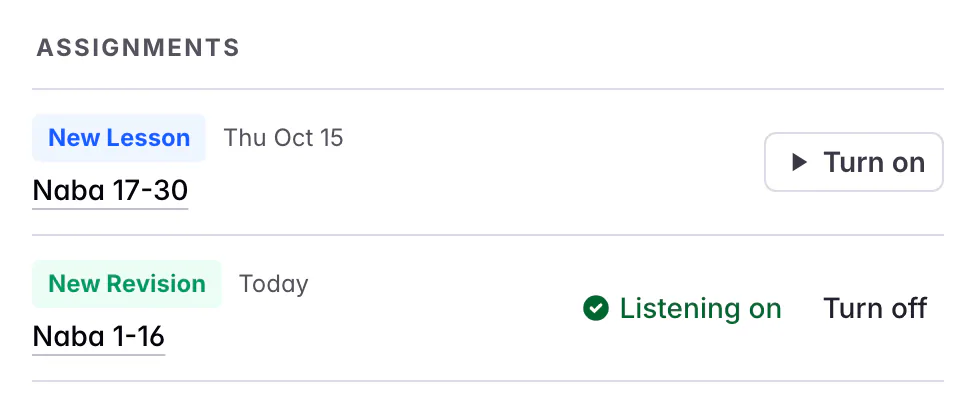
Whatever has listening on shows on the child’s Today.
Everything with listening on appears on the child’s Today’s practice from its due date, and overdue work stays there until you grade it. You can also turn listening on from the assignment itself: open it and press the switch beside Listening practice, or Listen and repeat on a Qaidah lesson. If the defaults weren’t saved yet, that saves the ones shown. Changing the defaults later doesn’t change assignments that already have listening on.
Once home practice is on, an assignment with listening on has a Copy link button in its listening section. Send the link to the family: opened on the child’s phone or tablet, it signs it in and goes straight to that lesson, even one due later. Each link signs in one device and works for 72 hours. On a device that is already signed in, it keeps opening the lesson. Copy link only appears once the child’s sign-in is on.
Sign a device in from class with a QR code
The quickest way, when the child or a parent is with you. Nothing to type or remember.
-
Press Show link
In Signing in at home, next to Sign in a device, press Show link. A large QR code appears, with the link underneath, a Copy link button and the time it stops working.
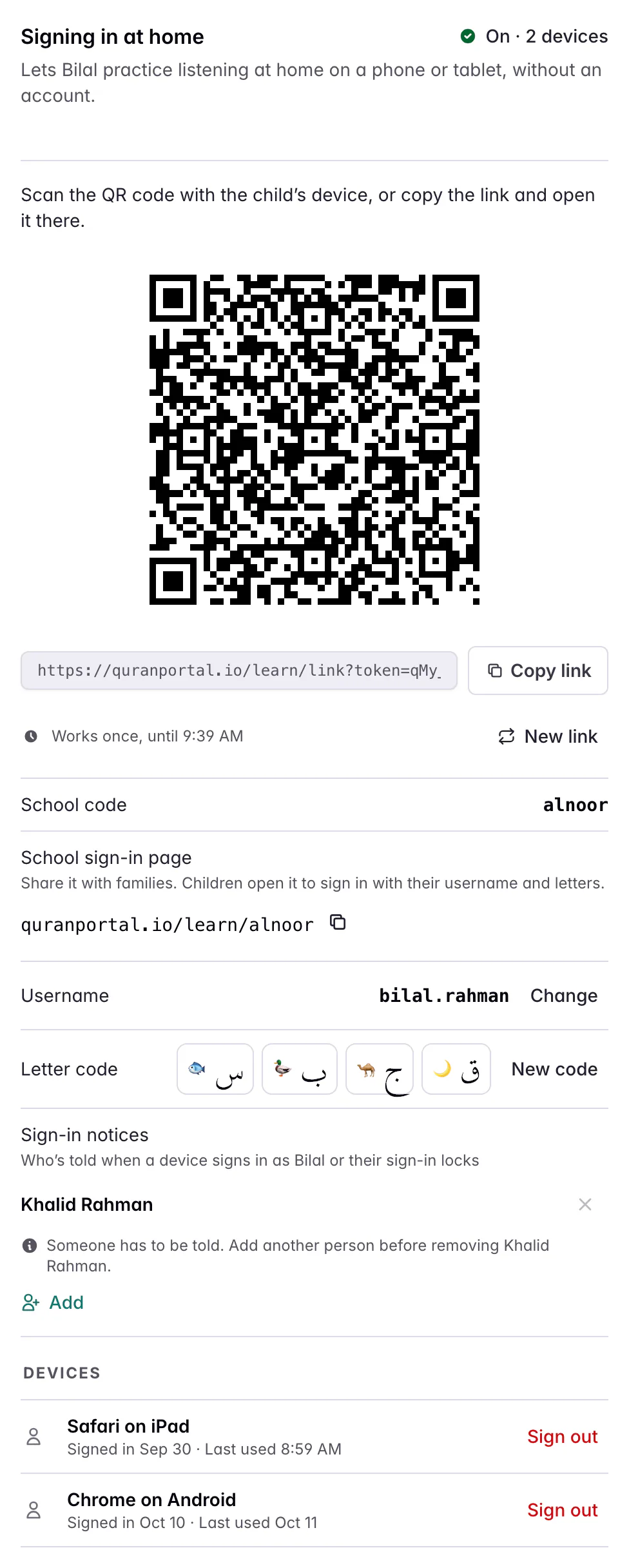
The link works once, for 15 minutes. -
Scan it with the child’s device
The child or parent scans the QR code with the camera of the child’s phone or tablet. You can also press Copy link and send it to the parent to open on the device within 15 minutes. Each link signs in one device. Once it has, the QR code on your screen turns into This link was used, so press Show a new link for the next device.
-
The child presses Start practicing
The link opens a page that says Hi Bilal! with one big button, Start practicing as Bilal. Pressing it signs the device in and opens the child’s practice.
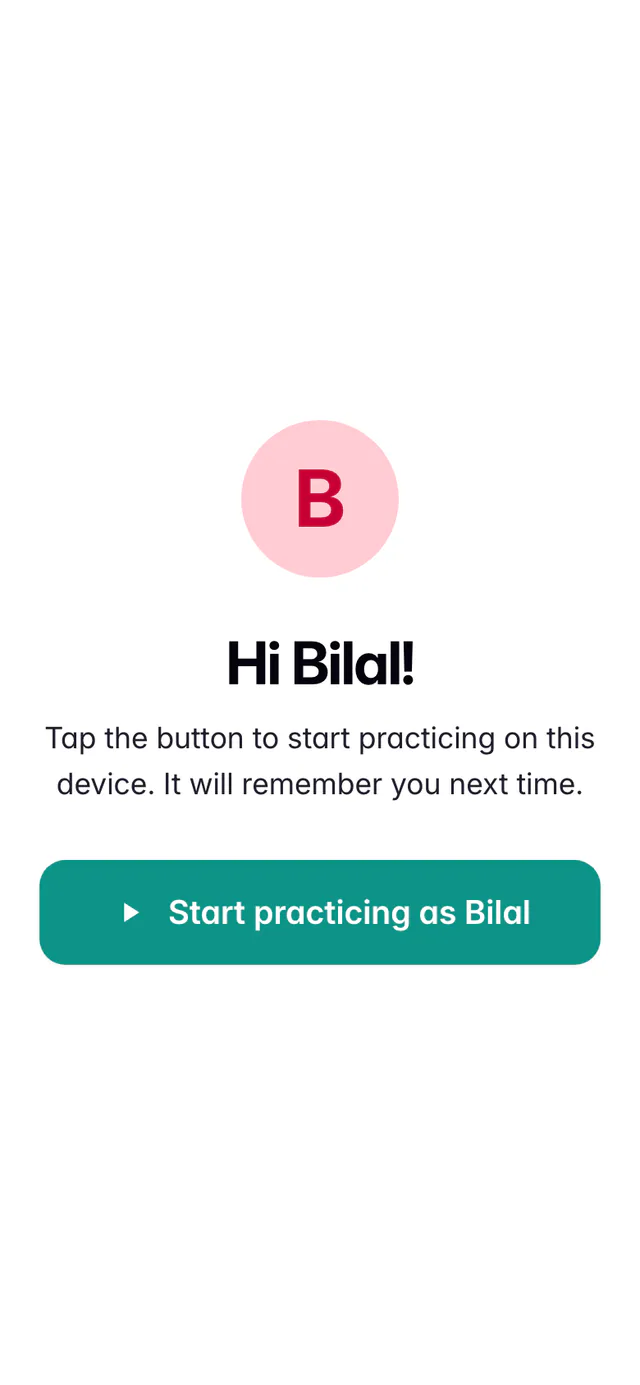
Opening the link doesn’t sign in on its own. The child presses the button.
Only pressing the button uses the link up, so a link checker in an email or chat app can’t spend it. If the same link is opened on two devices, only the first to press the button gets in. A late or used link tells the child Ask your teacher or a parent for a new practice link. Press Show link again, or the child can press Sign in with my letters.
If the wrong child scanned the code, press New link under it. Showing a new link stops the old one working straight away, so only the code on your screen signs in. A link that runs out turns into This link expired, with a button for a new one.
A link can only be seen on the screen that made it. If you come back to the Practice center while a link shown earlier is still unused, the button says Show a new link and Replaces the link shown earlier, which stops working. That earlier link, on your screen or a parent’s, then no longer signs in.
Share the sign-in details with families
At home, a child can sign a new device in on their own with your school’s sign-in page, their username and their letter code. Signing in at home has them all:
- School code: a short word for your school, the same for every child, such as alnoor. QuranPortal makes it from the school’s name, and school admins can press Change to pick another. It isn’t a secret: it only gives each school its own usernames.
- School sign-in page: your school’s own address, such as quranportal.io/learn/alnoor, the same for every child. Press the copy button next to it and share it with families once, for example in a class group chat.
- Username: the child’s first and last name, such as bilal.rahman. Press Change to pick another (lowercase letters, numbers and dots, 3 to 30 characters).
- Letter code: four Arabic letters, in order. Press Show to see them. Each letter has a small picture as a hint, such as a moon 🌙 for ق, but the letter is what counts. QuranPortal records who looked at the code each time.
Parents see the same details in their own Practice center. The family guide walks through signing in with them.
Wrong letters, pauses and locks
Wrong codes in a row slow things down instead of locking the child out straight away, so a classmate who knows a username can’t lock a friend out for fun:
- 5 wrong in a row: sign-in pauses for 15 minutes.
- 10 wrong in a row: sign-in pauses for 1 hour.
- 15 wrong in a row: sign-in is locked until a grown-up unlocks it.
- A correct code starts the count again.
Devices that are already signed in keep working. Pauses are silent. When sign-in locks, the people under Sign-in notices get a notification: Bilal’s sign-in is locked, with Unlock it or make a new code in the Practice center.
In the Practice center, the status reads Locked after too many wrong letter codes, or Paused after wrong letter codes, until a time, and a Sign-in locked or Sign-in paused section has an Unlock button.
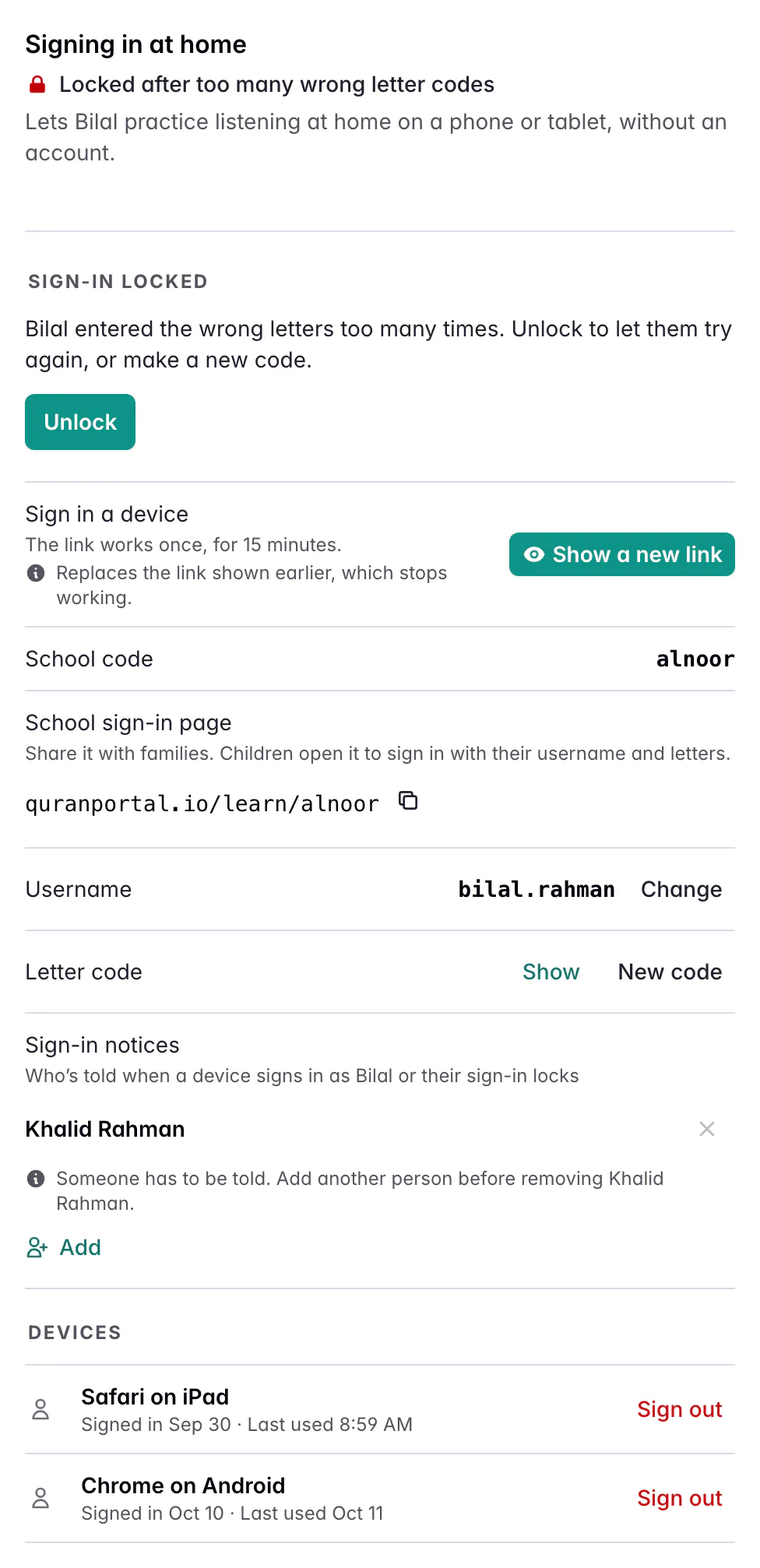
- The child forgot their letters: press Show next to Letter code and tell them, then Unlock if needed. Or press Show link and sign the device in that way.
- Someone else may know the letters: press New code. The old code stops working at once and any pause or lock is lifted. Devices already signed in stay signed in.
Change the school code
Open Settings and choose School code, or press Change next to School code in any child’s Practice center. Type the new code and press Save. A code uses lowercase letters, numbers and hyphens, 3 to 20 characters, such as qasas or al-noor-leeds.
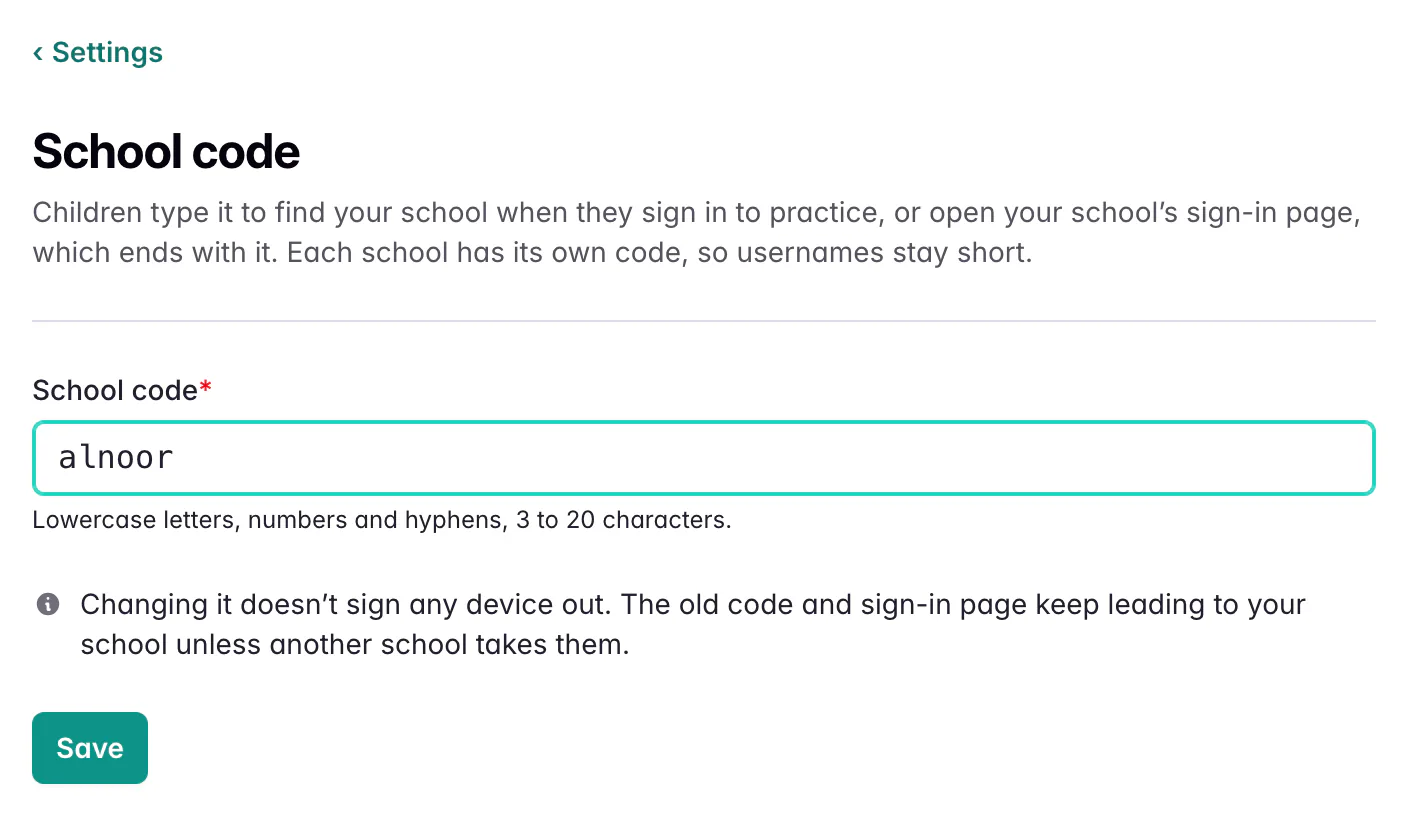
Changing it doesn’t sign any device out, and the old address keeps leading to your school unless another school takes that code. Tell families the new one.
Devices
Devices lists every device signed in as the child, such as Safari on iPad, with when it signed in and was last used. A device stays signed in for 60 days after it was last used, and the child has no sign-out button to press by mistake. Press Sign out next to a lost phone or a tablet the family no longer uses. Their practice history stays.
Who can do what
- Teachers of the child’s class and school admins can do everything in this guide. Only school admins can invite a parent and change the school code.
- Parents and guardians (mother, father or guardian) get the sign-in part of the Practice center: the switch, Turn on sign-in, Show link, the letter code, New code, Unlock, the username and Sign out. Their Practice center has no listening defaults or Assignments list.
- Observers, other families and teachers of other classes can’t open the child’s Practice center.
- The child can only practice. A signed-in device opens nothing but the child’s own practice pages.
Questions and answers
Can a student with their own QuranPortal account use home practice?
Yes. They sign in with their own account and practice from there, so they don’t need a child sign-in. The Home practice switch turns their practice on and off like anyone else’s. If their own account is connected after a child sign-in was set up, every device signed in as the child is signed out.
What is the difference between turning home practice off and signing a device out?
Sign out signs out one device, such as a lost phone, and the child keeps practicing on the others. Turning the Home practice switch off stops all of the student’s practice, signs out every device and stops new sign-ins until it is on again. Neither changes the username, the letter code or which assignments have listening on.
Does overdue work still show on the child’s Today?
Yes. An assignment with listening on stays on the child’s Today’s practice from its due date until you grade it, however late it is.
How do I turn listening on for an assignment?
Press Turn on next to the assignment in the Practice center’s Assignments list. If the student has no listening defaults yet, this saves the ones shown. You can also open the assignment and press the switch in its listening section.
Why is a child’s username student1?
Usernames are made from the Latin letters in the child’s first and last name, such as bilal.rahman. Names written only in Arabic or Urdu script have none, so QuranPortal uses student1, student2 and so on. Press Change next to Username and pick something the child will remember.
Where do I see the child’s practice?
Under Listening Practice on the assignment, with their focused time and repetitions. The assignment’s history also says, for example, Bilal started a listening session on their own sign-in.
Related guides
- Let children practice at home Sign your child in on a phone or tablet with a link, a QR code or a four-letter code, with no email or password, so they can practice listening at home.
- Every way to create an assignment The quickest ways to set a student's New Lesson, revision, reading or Qaidah work in QuranPortal, and which one to use when.
Still stuck?
Tell us what you were trying to do and we’ll help. Email support@quranportal.io. Need to chat with the team? Join our WhatsApp group.