Copy an assignment to other students
Give several students, or brothers and sisters, the same work: copy an assignment with Copy to… or by dragging it on the Teacher Dashboard.
For teachers, school admins, and parents Updated
On this page
When several students need the same work, set it once and copy it. A copy is a new assignment for the other student with the same type, range and tags. There are two ways to copy on the Teacher Dashboard: Copy to… in the assignment’s window, and dragging.
Which way should I use?
- Several students, or any day. Use Copy to…. You pick the day and tick every student at once. It works on phones too.
- One student, on a day you can see. Drag the assignment onto their row. It is the quickest way on a computer or iPad.
- The same student, on another day. Either way works: tick the student in Copy to…, or hold Option while you drag.
Copy to… from the assignment’s window
-
Open the assignment
On the Teacher Dashboard, click the assignment you want to copy. Its window opens with the range, the grade and the student’s recent work.
-
Choose More, then Copy to…
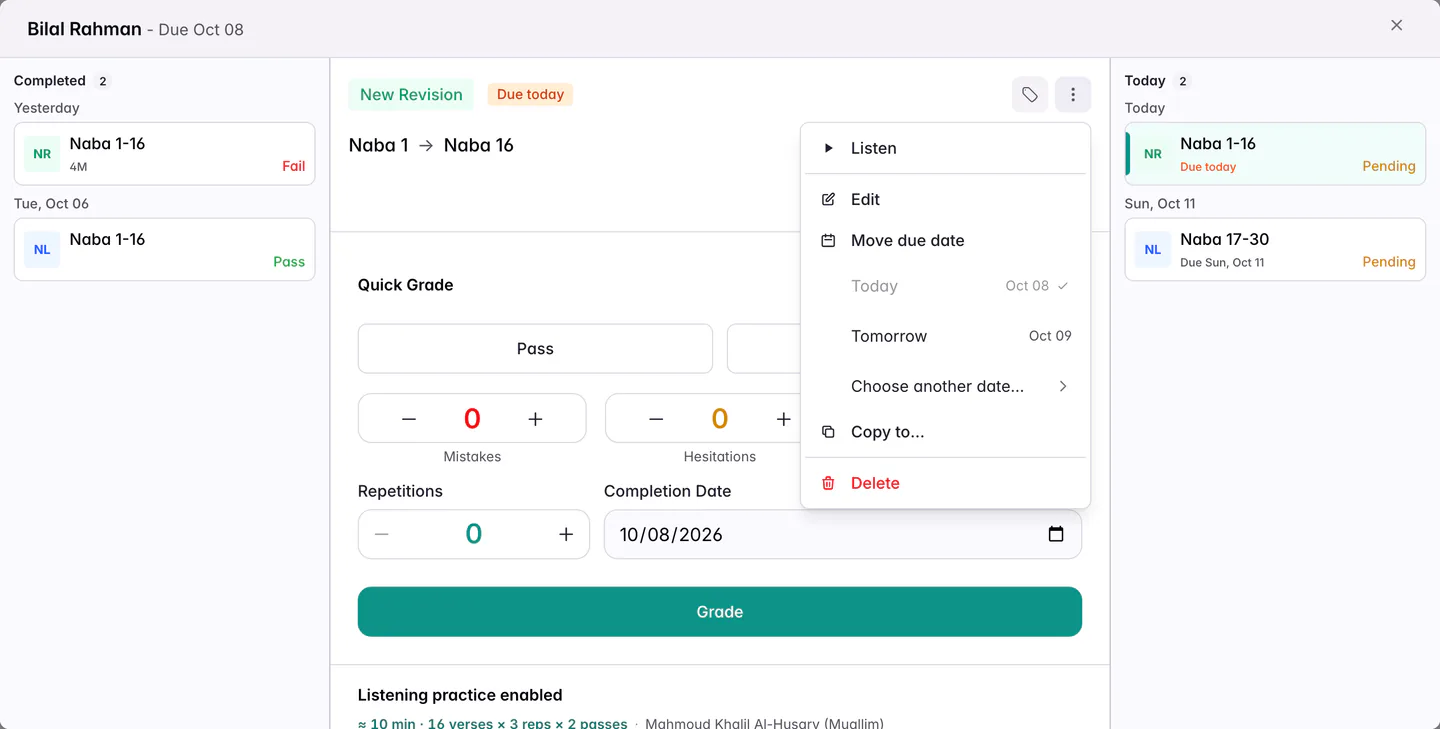
Copy to… is in the More menu. -
Pick the day and the students
The Copy assignment window opens. Set the Due date, tick each student who should get the work (or Select all) and press Copy. The student you copied from is marked This student: tick them too to give them the same work on another day.
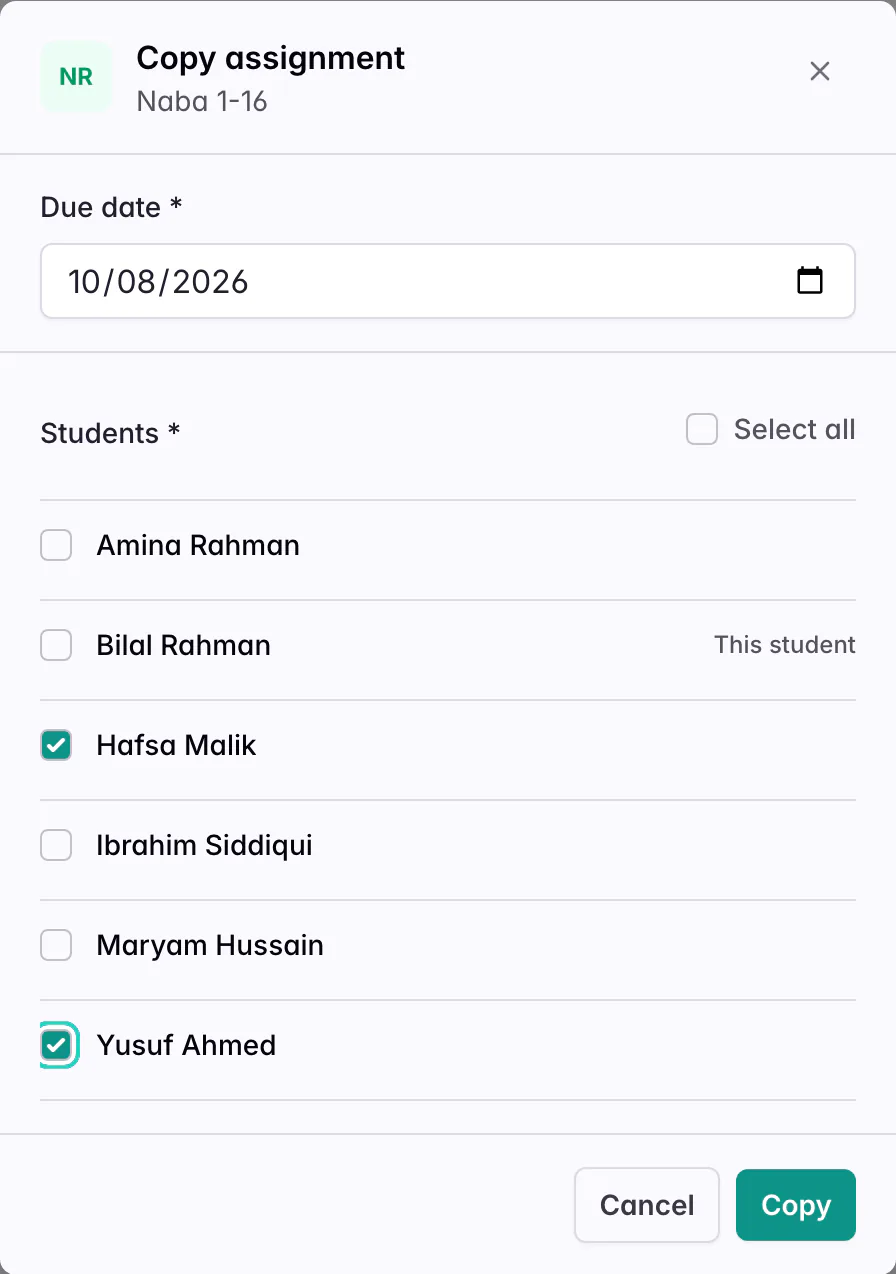
Each student you tick gets their own copy.
A message such as Copied to 2 students. confirms it, and the copies appear in each student’s row. The original stays where it was.
Drag onto another student
On a computer, press on an assignment and move it. On an iPad, press and hold it for a moment, then move it. Phones don’t drag, so use Copy to… there.
-
Drag the assignment onto the student’s row
Move it to the day you want in the other student’s row. The cell shows Copy to, the student’s first name and the day, so you can check before you let go.
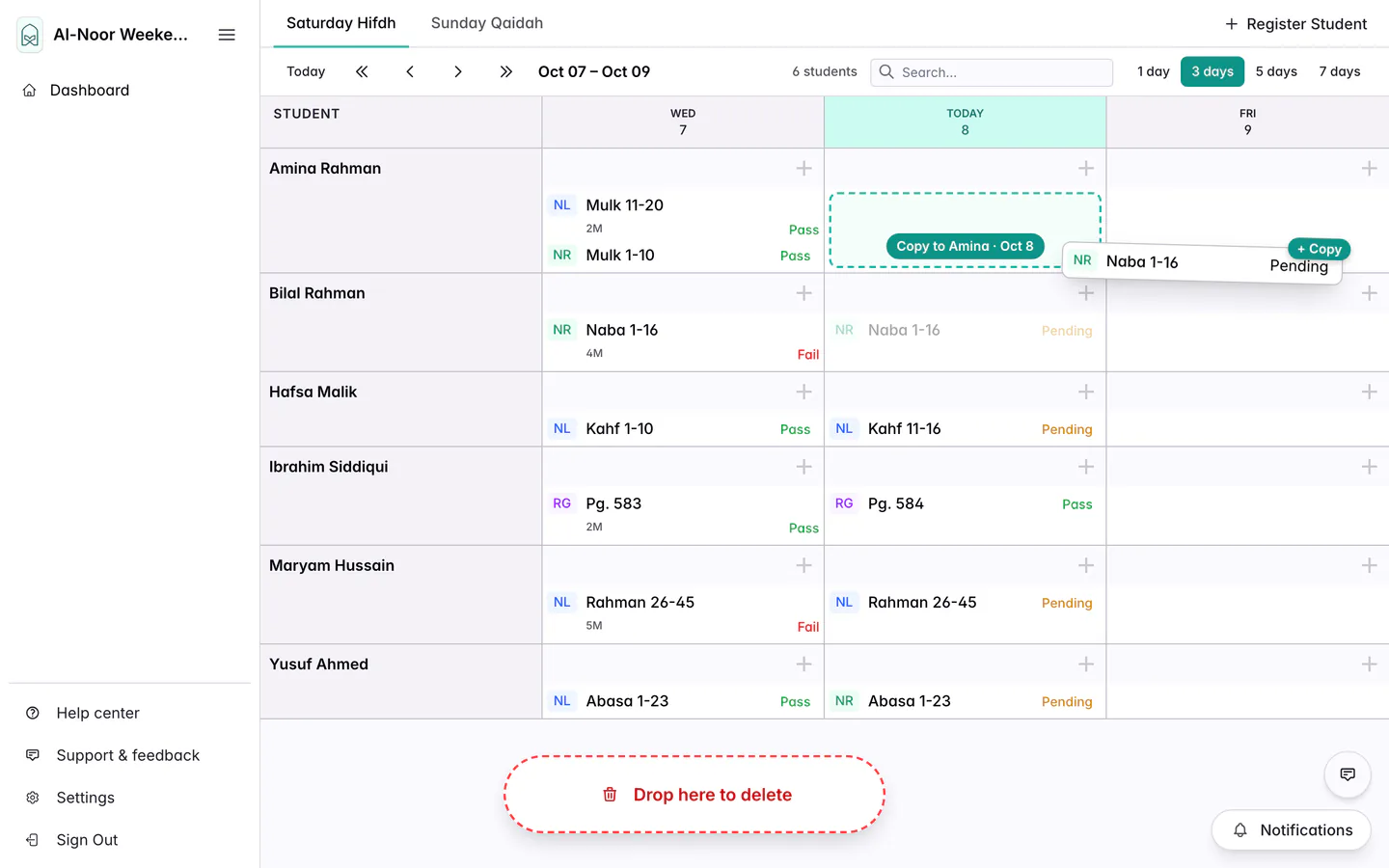
Dropping Bilal’s work in Amina’s row copies it to her. Bilal keeps his own. -
Let go
The copy appears in that student’s row, and the original stays in its own.
To copy to another day for the same student, hold Option (Alt on Windows) while you drag along their row. The cell shows Copy to and the day. Without Option, dragging within a student’s row moves the assignment instead, and the cell shows Move to.
What a copy includes
- Copied: the type, the range and the tags.
- The grade: a copy of work that is already graded keeps the same grade, on the day you chose. This is handy when a group recited together. A copy of work that isn’t graded yet is waiting for a grade too.
- Not copied: marked mistakes and comments. They belong to the student who recited.
- Qaidah: Qaidah work only copies to students on the same Qaidah book. QuranPortal skips the others and tells you who, such as Not copied to Omar Qureshi: they use a different Qaidah book.
To undo a copy, open it and choose More, then Delete. See Delete work you don’t need.
Questions and answers
Can I copy an assignment to the whole class at once?
Yes. Open the assignment, choose More and Copy to…, press Select all, pick the day and press Copy.
How do I give a student the same work on another day?
Open the assignment, choose More and Copy to…, tick the student marked This student, pick the day and press Copy. On a computer or iPad you can also hold Option (Alt on Windows) while you drag along their row.
Why can’t I find Copy to…?
It is in the window that opens when you click an assignment on the Teacher Dashboard. It only shows if you can set work for the class.
Why isn’t a student in the list?
Only classmates you can set work for are listed. To copy to a student in another class, ask a teacher of that class, or set the work for them directly.
Does a copy change if I edit the original?
No. Each copy is a separate assignment. Edit or delete it on its own.
Related guides
Still stuck?
Tell us what you were trying to do and we’ll help. Email support@quranportal.io. Need to chat with the team? Join our WhatsApp group.